
Why Aren't My Headphones Working?
author: David
2025-08-01
Why Aren't My Headphones Working?
There’s nothing more frustrating than settling in to listen to music, watch a movie, or join a call, only to find that your headphones aren’t working. Whether they’re completely silent, producing distorted sound, or only working in one ear, headphone issues can put a damper on your day. In this blog, we’ll explore common reasons why your headphones might not be working and how to fix them.
Connection Issues
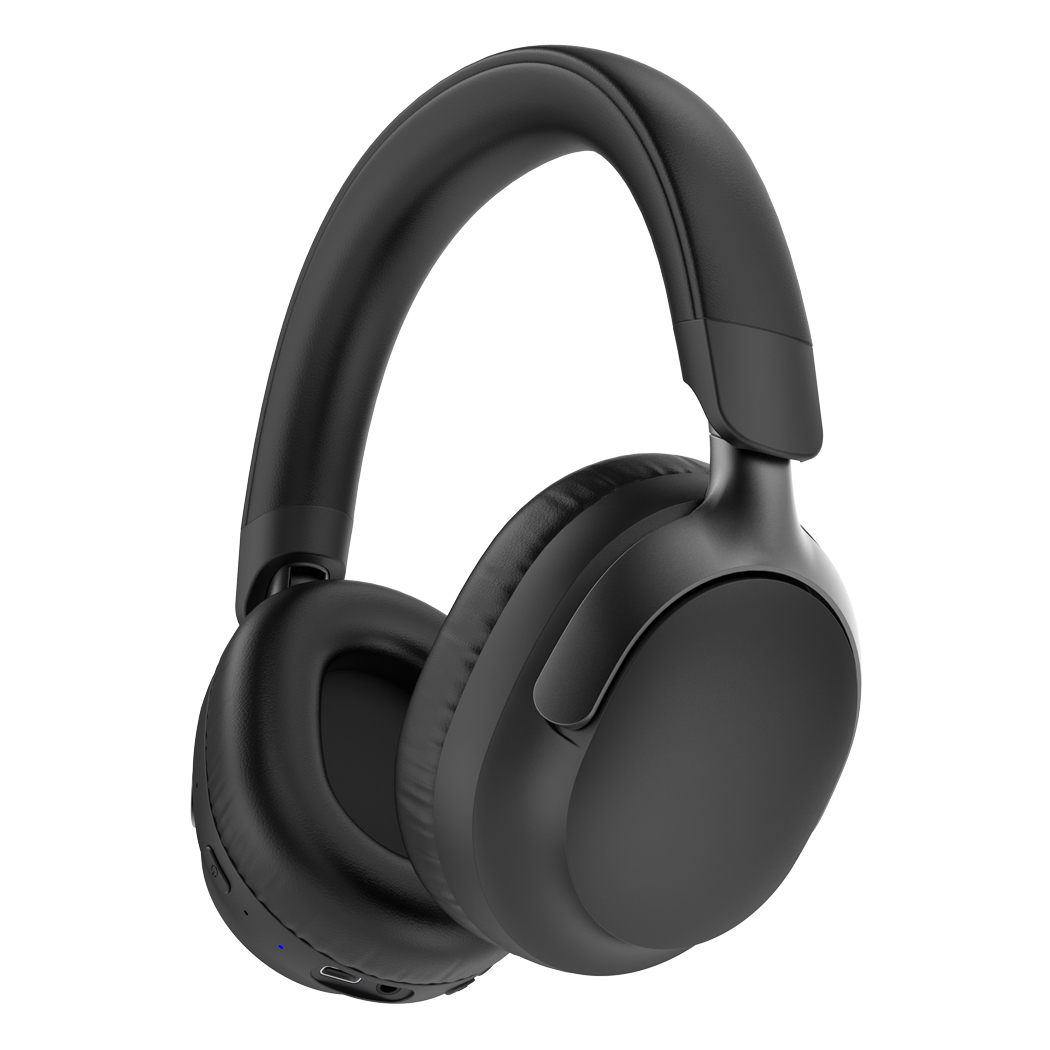
Wired Headphones: Loose or Damaged Cables
For wired headphones, one of the most common culprits is a loose or damaged cable. Start by checking the connection between the headphones and your device. If the plug isn’t fully inserted into the audio jack, the sound may cut out or not play at all. Try unplugging and reinserting the cable firmly—sometimes a simple reconnection is all it takes.
If the connection is secure but the headphones still don’t work, inspect the cable for damage. Look for frayed wires, kinks, or cuts, especially near the plug or where the cable connects to the headphones themselves. A damaged cable can interrupt the audio signal. If you spot damage, the cable may need to be repaired or the headphones replaced, depending on the severity.
Wireless Headphones: Pairing Problems
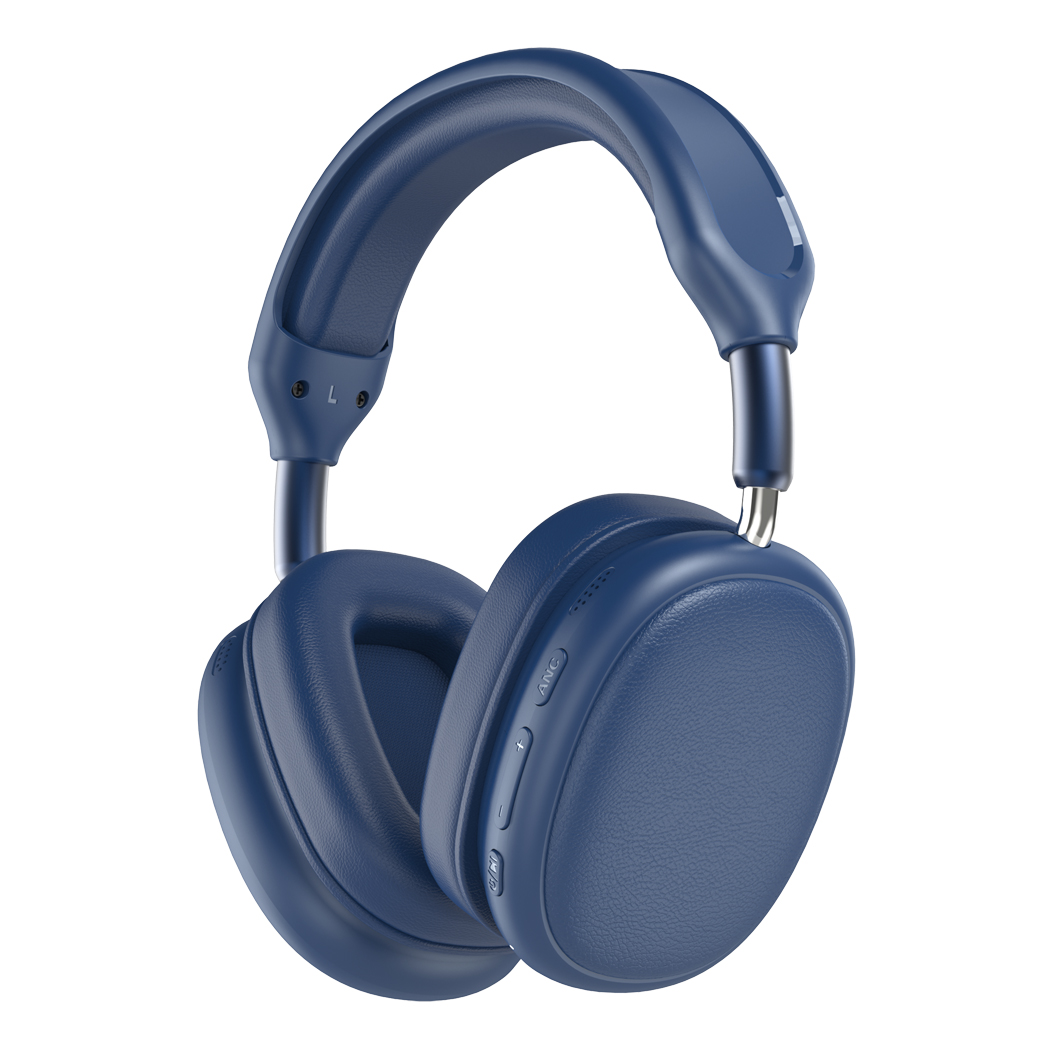
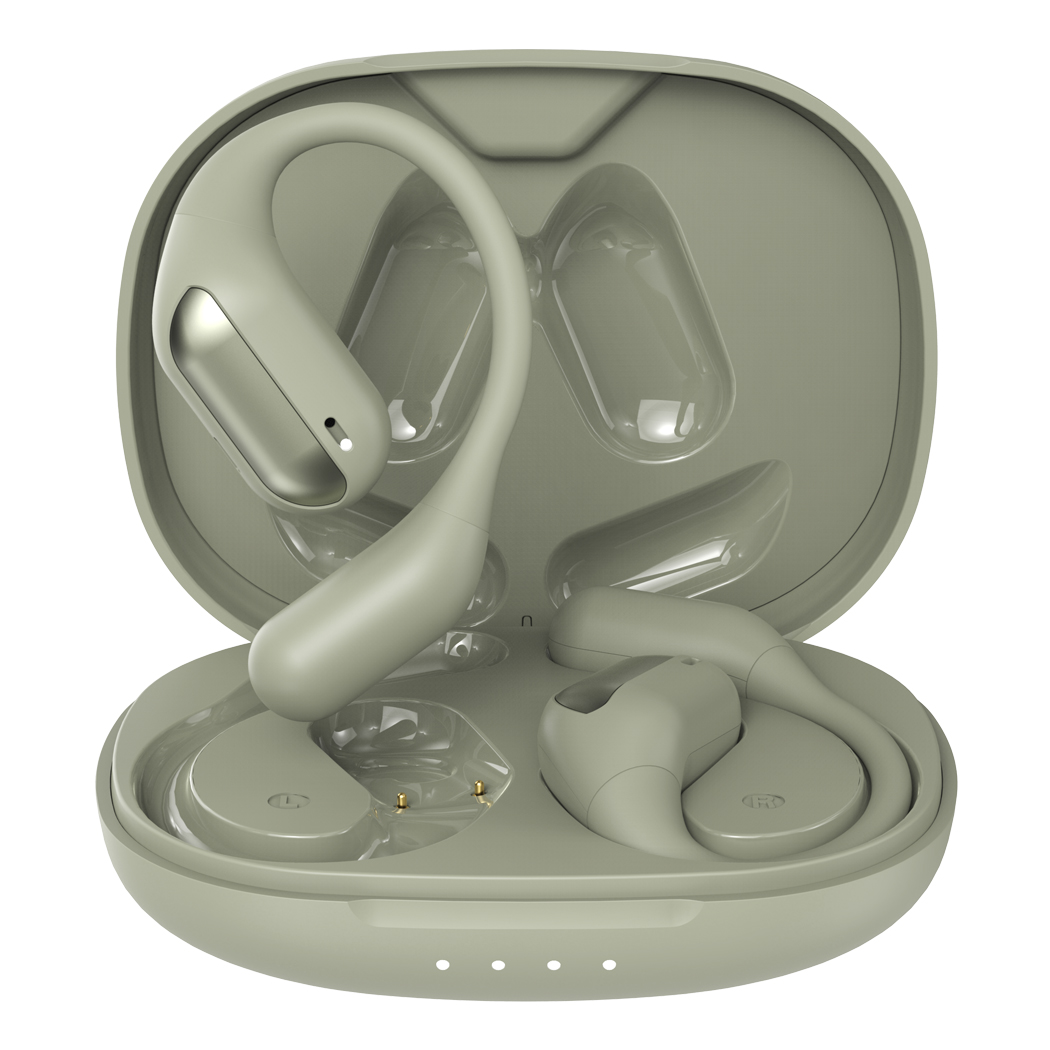
Wireless or Bluetooth headphones rely on a stable connection to your device, and pairing issues are a frequent cause of malfunction. First, ensure your headphones are in pairing mode—this is usually indicated by a flashing light (often blue or red). Check your device’s Bluetooth settings to see if the headphones appear in the list of available devices. If not, try turning Bluetooth off and on again on both the headphones and your device.
Another issue could be a weak battery in the wireless headphones. If the battery is low, the headphones may struggle to connect or stay connected. Charge your headphones fully and try pairing again. Additionally, distance can affect the connection—keep your headphones within the recommended Bluetooth range (usually 30 feet or 10 meters) of your device to avoid signal drops.
Device Settings Issues
Audio Output Selection
Sometimes, your headphones are connected, but your device isn’t sending audio to them. This often happens if the wrong audio output is selected. On computers, go to your sound settings: on Windows, right-click the volume icon in the taskbar and select “Sound,” then under the “Playback” tab, ensure your headphones are set as the default device. On macOS, go to “System Preferences” > “Sound” > “Output” and choose your headphones from the list.
On smartphones or tablets, swipe down to access the quick settings panel and check the audio output. Some devices may automatically switch to speakers if the headphones connection is unstable, so manually selecting the headphones as the output device can resolve the issue.
Volume and Mute Settings
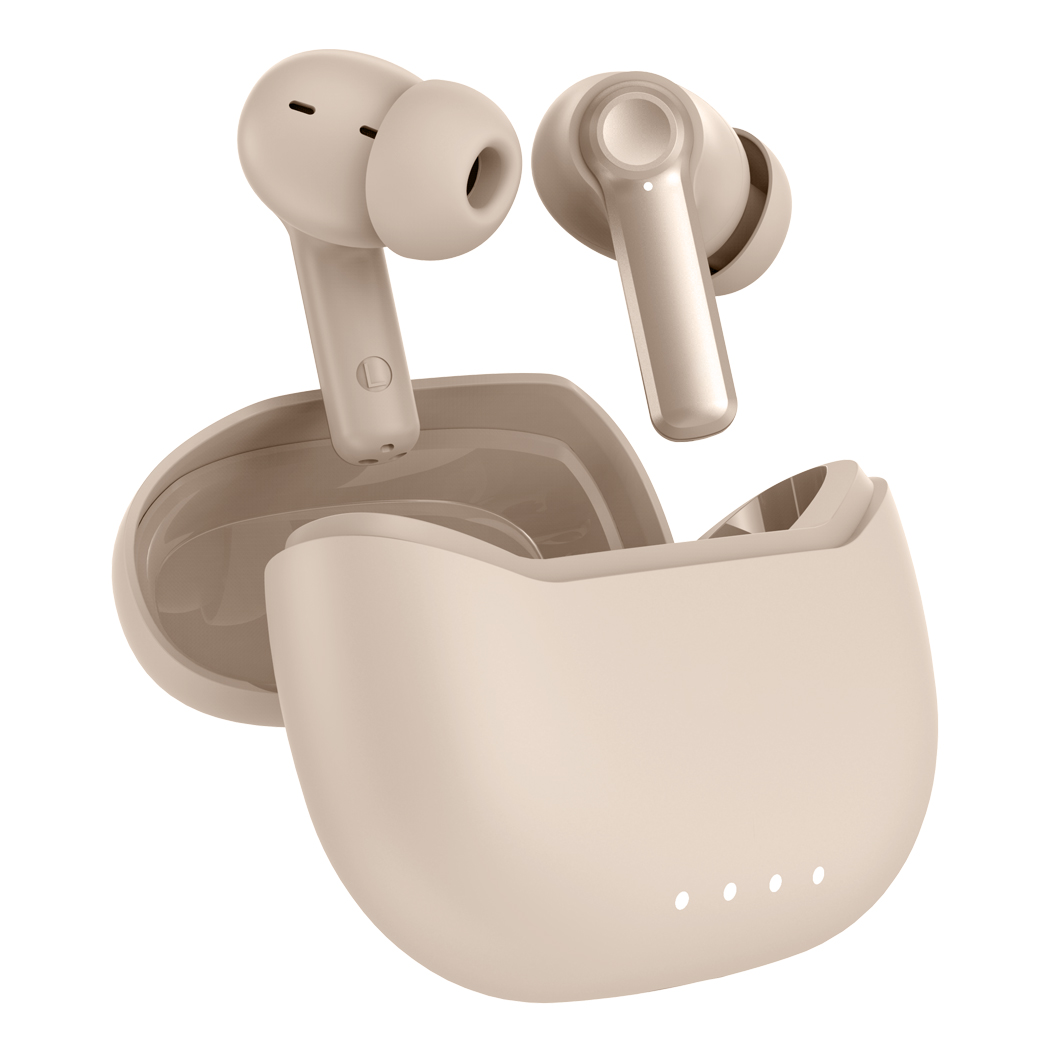
It sounds simple, but double-checking the volume and mute settings can save you a lot of time. Make sure the volume on your device is turned up and that your headphones aren’t muted. Many headphones have their own volume controls or mute buttons—check these as well. For example, in-ear headphones with an in-line remote may have a mute switch that could be accidentally activated, while over-ear wireless headphones may have physical volume buttons that are turned down.
Hardware Problems
Faulty Headphone Jack or Port
If your wired headphones work on other devices but not on your current one, the issue may be with the device’s audio jack. Dust, debris, or damage to the jack can prevent a proper connection. Try cleaning the audio jack gently with a soft brush or compressed air to remove any dirt. If the jack is bent or damaged, you may need to have it repaired by a professional.
Similarly, for wireless headphones, a faulty Bluetooth chip in the headphones or the device can cause connection problems. Test your headphones with another device—if they work elsewhere, the issue is likely with your original device’s Bluetooth hardware. If they don’t work on any device, the problem is probably with the headphones themselves.

Speaker or Driver Damage
If you hear distorted sound, static, or no sound in one ear, the headphones’ speakers or drivers may be damaged. This can happen due to excessive volume, physical impact (like dropping the headphones), or wear and tear over time. To test this, play audio through both ears separately. If one side is completely silent, the speaker in that ear cup may need to be replaced. For in-ear headphones, a damaged driver in one earbud can cause one-sided audio issues. In such cases, contacting the manufacturer for repair or replacement may be necessary.
Software and Driver Issues
Outdated Drivers (Computers)
On computers, outdated or corrupted audio drivers can prevent headphones from working properly. For Windows users, open “Device Manager,” expand “Sound, video and game controllers,” right-click your audio device, and select “Update driver.” Follow the prompts to install the latest driver. On macOS, drivers are usually updated automatically through system updates, but you can check for updates in “System Preferences” > “Software Update.”

App-Specific Issues
Sometimes, the problem is isolated to a specific app. For example, a music app or video player may have its own audio settings that are misconfigured. Check the app’s settings to ensure the audio is set to play through your headphones and that the volume within the app is turned up. Closing and reopening the app can also resolve temporary glitches.

Headphones not working can be frustrating, but most issues are easy to diagnose and fix. Start by checking connections, whether wired or wireless, and ensure your device settings are correctly configured. If the problem persists, test the headphones on another device to rule out hardware damage. By following these steps, you can often get your headphones working again quickly. If all else fails, reaching out to the manufacturer’s customer support for further assistance is a good next step. Remember, a little troubleshooting can go a long way in restoring your audio experience!
What Are Noise Cancelling Headphones?
Can You Connect Bluetooth Headphones to Xbox One
Related Article

Learn DIY headphone troubleshooting for crackling sound, mono audio & Bluetooth issues. It covers repair limits and introduces Dongguan Yongfang Electronics, professional OEM/ODM headphone maker, plus simple maintenance tips.
How to Fix Headphones
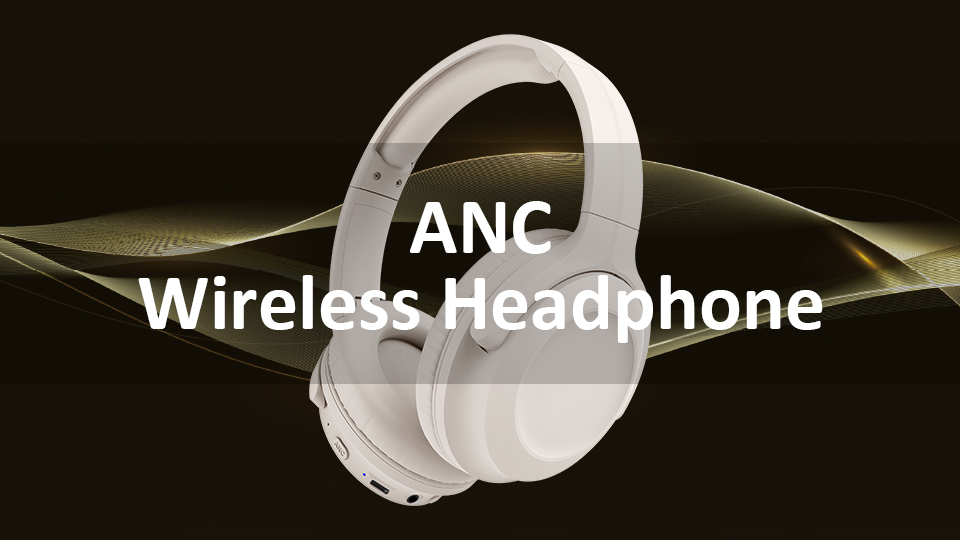
ANC stands for Active Noise Cancellation. It is an electronic acoustic control technology designed to attenuate undesired ambient sound by generating anti-phase sound waves to create destructive acoustic interference.
What Does ANC Mean on Headphones

